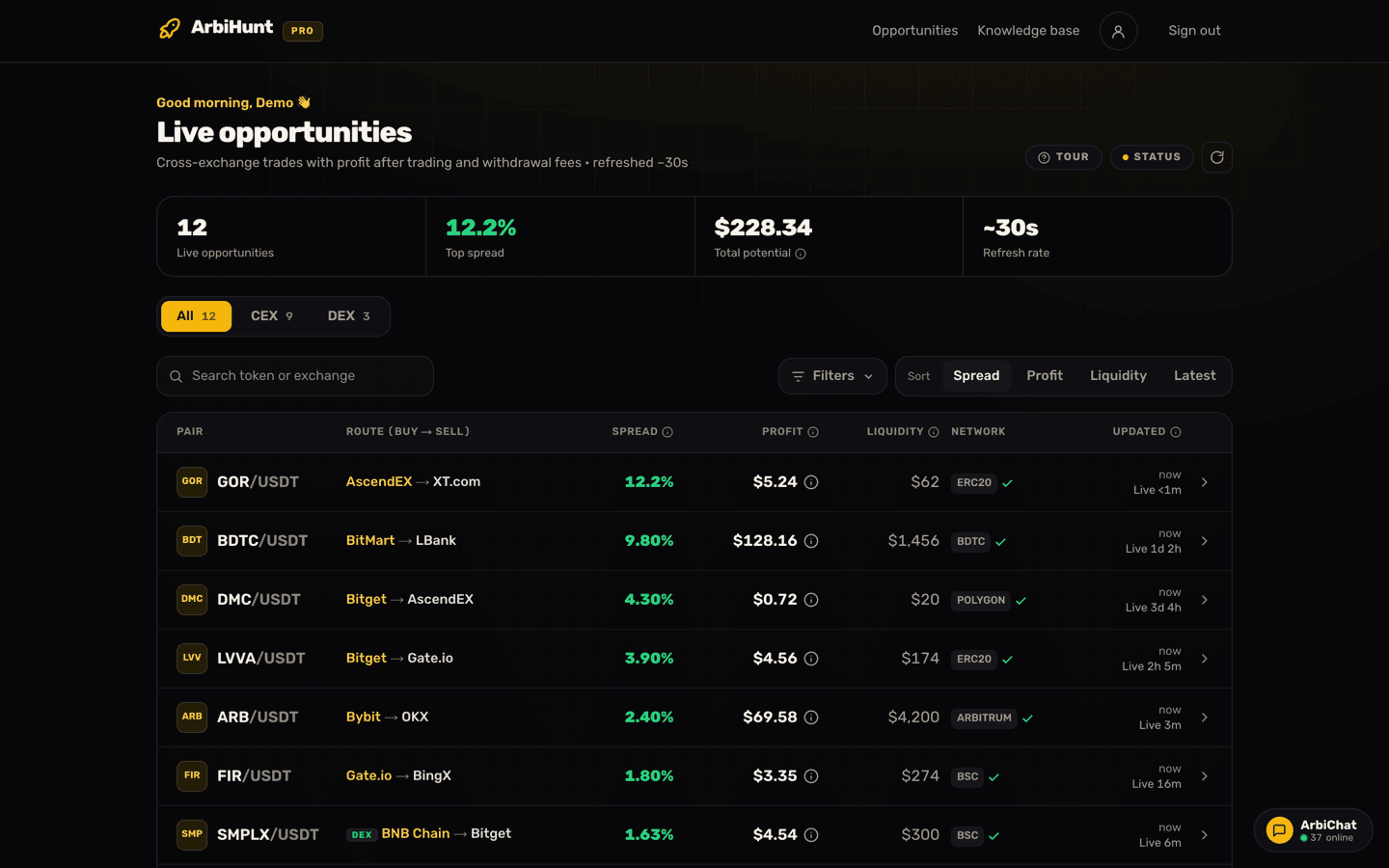
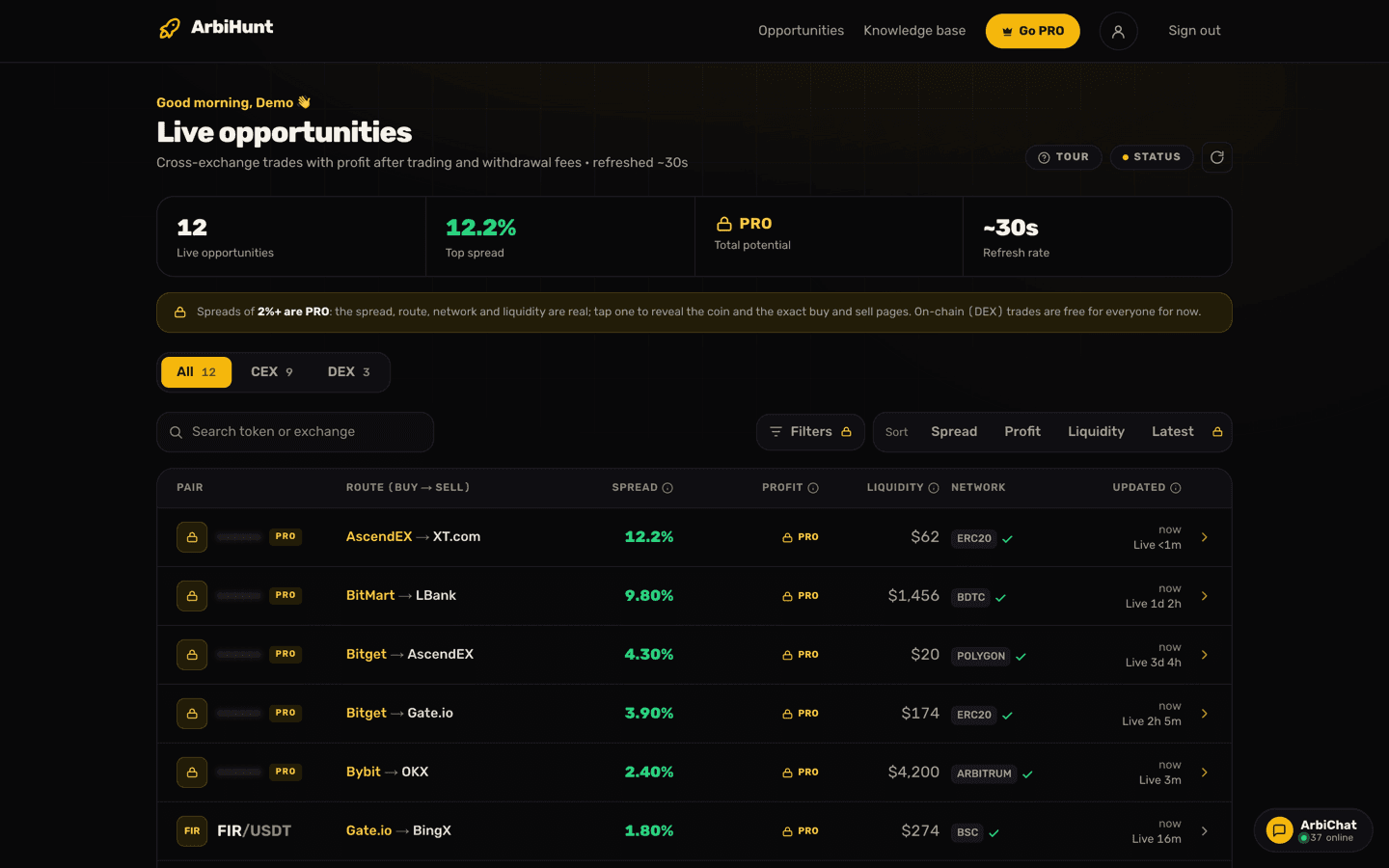
ArbiChat is the members' chat room: the place to ask how a trade went, which networks are slow today, or what a number on the board means. It is open to every member, free or PRO. In the app it is the Chat Room tab; on the website it is the ArbiChat panel.
Joining
The first time you open it, you are asked to agree to the Community Guidelines and to pick a display name. That name is what other members see on your messages, and you can change it any time from your profile.
Posting a message
Type in the box at the bottom and send. A few things to know:
- Up to 500 characters a message.
- Links and contact details are removed from members' messages, and a message with them says "Contact info hidden for safety". That keeps scammers from pulling members into private chats.
- Slow down if asked. Sending many messages in a row, or the same one twice, is held back for a few seconds.
- You can edit a message for 3 minutes after you send it. Long-press it (or tap the ···) and choose Edit message. Edited messages carry a small "*Edited" mark. After 3 minutes the text is fixed.
- Members cannot delete messages. If you posted something by mistake, such as a screenshot showing your email, ask a staff member in the chat to remove it.
Replying, and jumping to the original
To answer a particular message:
- In the app, long-press the message, or tap the ··· beside it, and choose Reply.
- On the website, hover over the message and click the reply arrow.
Your message then shows the one you are answering in a small quote above it, so everyone can follow the thread.
In the app, tap that quote to jump to the original message. The chat scrolls to it, loading older messages if it has to, and the original glows gold for a moment. If the original has been deleted, or is too far back, the app tells you instead.
Reactions
React to a message with an emoji instead of a reply: long-press or ··· in the app, or the quick reactions that appear when you hover over a message on the website. In the app, tap a reaction under a message to see who reacted.
Sharing a photo
Sharing pictures is a PRO feature: a free member who taps the picture button is shown the PRO plans instead.
- Tap the picture button beside the message box.
- Pick a photo, and add a caption if you like.
- Tap Post. Everyone in the chat sees it.
There is a limit on how many pictures you can share in an hour. If you do not see the picture button in the app, update it from the App Store or Google Play.
Check a screenshot before you post it
Exchange screenshots often show your email, your user ID, a deposit address or your balance. Crop those out first. Nobody in the chat needs them to help you.
Blocking a member
If someone is bothering you, block them in the app:
- Long-press one of their messages, or tap the ··· beside it.
- Choose Block this member, and confirm.
You stop seeing their messages straight away. They are not told. To undo it, open the Profile tab and look under Blocked members.
A block is saved on your phone, for your account. It does not carry over to the website or to another phone, so block there too if you use them. The website does not have a block button yet: use Report there, or ask a staff member in the chat.
Reporting a message
If a message breaks the rules (a scam, abuse, spam, someone's personal details), report it:
- In the app: long-press or ···, then Report message.
- On the website: hover over the message and click Report.
Our team reviews every report. You can also email contact@arbihunt.com with what was posted and by whom.
Who is who
- STAFF next to a name means a member of the ArbiHunt team.
- PRO next to a name means a PRO member.
- Online now at the top shows how many members are in the chat; tap it to see who.
Staff never DM you for money
ArbiHunt staff will never message you privately asking for a payment, and nobody needs your seed phrase, private key, password or exchange API key. If someone offers to manage your money, sell you "signals" or unfreeze an account for a fee, it is a scam: report it. PRO is only ever paid through the checkout on arbihunt.com or in the app.
What members share in ArbiChat is their own experience, not financial advice, and that includes messages from staff. Check every trade yourself before you place it.
See it live
ArbiHunt scans 29 exchanges in real time and ranks every spread by true net profit, after fees, withdrawals and live liquidity.